BotMaster PlusHelp
🚀 Getting started

Install BotMaster Plus

Install BotMaster Plus on your Windows computer with the setup wizard. It takes about a minute.

Install

  1. Double-click the BotMaster Plus Setup file.
  2. If Windows shows "Windows protected your PC", click More info, then click Run anyway.
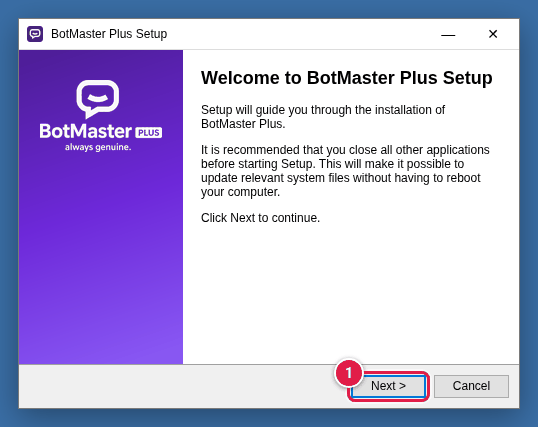
  3. On the welcome screen, click Next >.
Setup wizard welcome screen with the Next button marked
The first screen of the setup wizard.
  1. Read the licence agreement, then click I Agree.
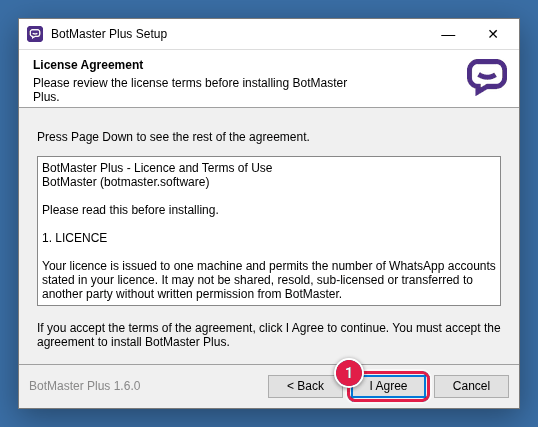
Licence agreement screen with the I Agree button marked
The licence agreement.
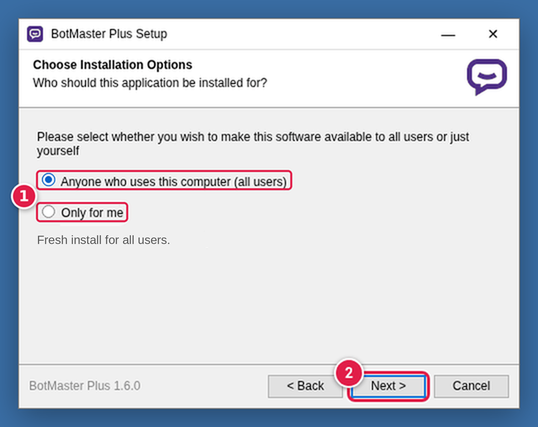
  1. Choose Anyone who uses this computer (all users) (the usual choice) or Only for me.
  2. Click Next >.
Installation options: Anyone who uses this computer (all users) selected, then click Next
Choose who can use the app on this computer.
  1. Keep the suggested folder, or click Browse... to pick another one.
  2. Click Install and wait for the progress bar to finish.
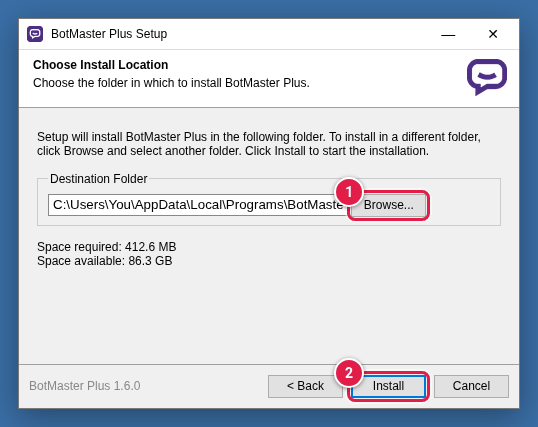
Choose install location screen with the Browse and Install buttons marked
Pick the folder for the app.
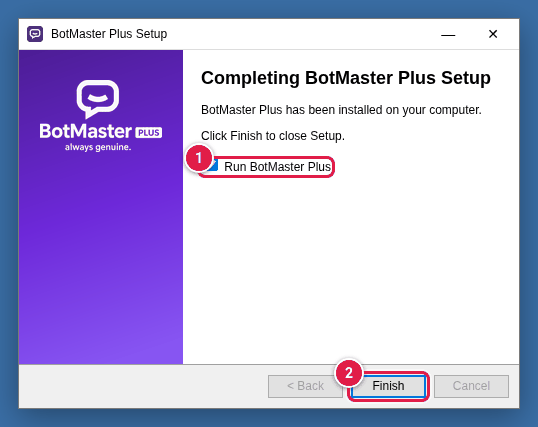
  1. Leave Run BotMaster Plus ticked.
  2. Click Finish. BotMaster Plus opens.
Last setup screen with Run BotMaster Plus ticked and the Finish button marked
Setup is complete.
BotMaster Plus Help Center · BotMaster · botmaster.software · +91 6390840511 · Contact & support
Install BotMaster Plus · BotMaster Plus Help