
🔗 WhatsApp accounts
Set up auto reply and keyword rules
Each account can answer incoming messages by itself. Send a welcome message to new people, and reply to set words such as "price" or "STOP".
Open the account settings
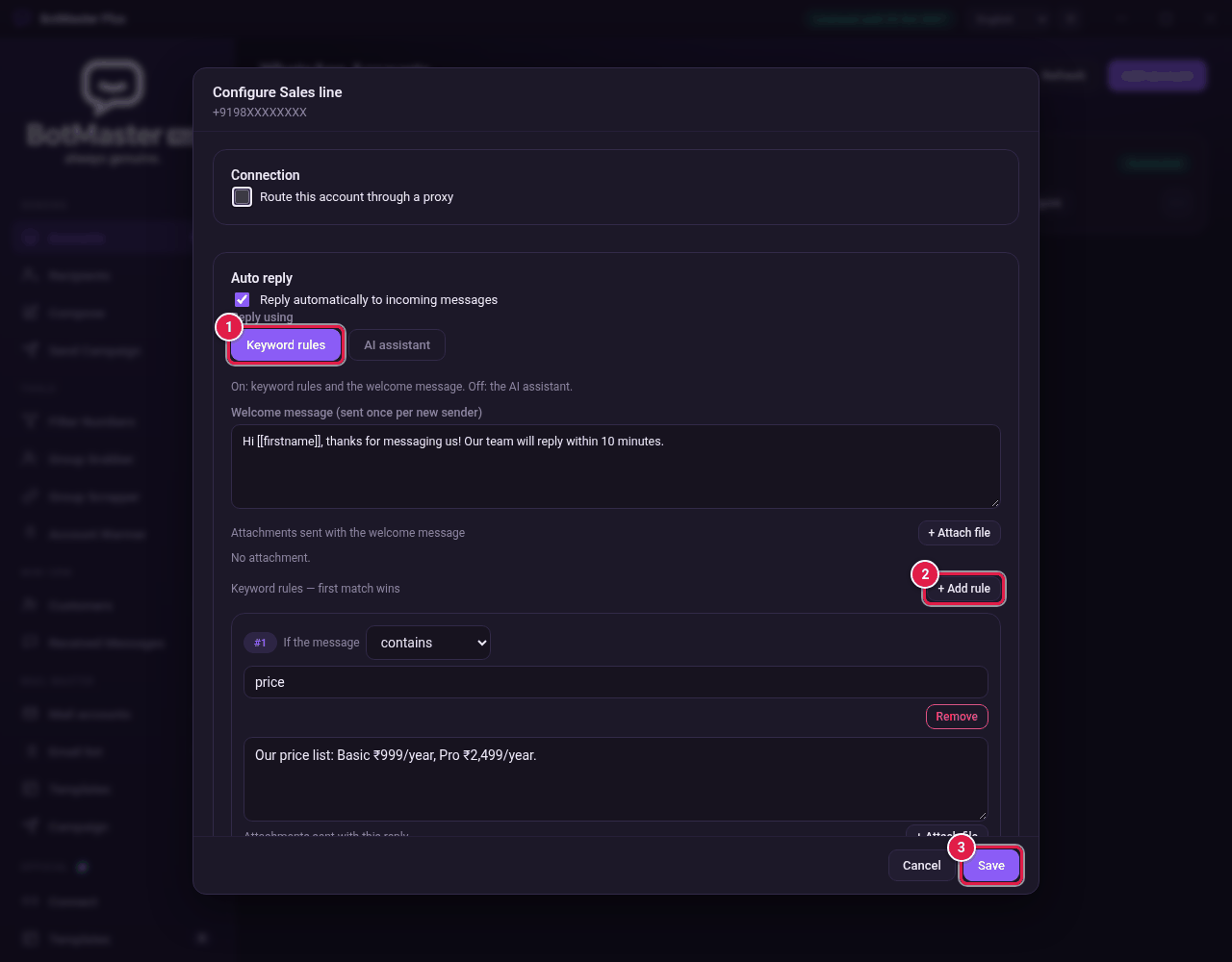
- On the Accounts page, click Configure on the account's card.
- In Auto reply, tick Reply automatically to incoming messages.
- Under Reply using, click Keyword rules.
Write the welcome message
- Type the text in Welcome message (sent once per new sender). You can use placeholders such as [[firstname]].
- To send a file with it, click + Attach file next to Attachments sent with the welcome message.
Add keyword rules
- Click + Add rule.
- In If the message, choose how to match: contains, is exactly, starts with or ends with.
- Type the word to look for, for example price.
- Type the reply in the large box below.
- To send a file with the reply, click + Attach file. You can add a caption to each file.
- Repeat for each rule. To delete one, click Remove.
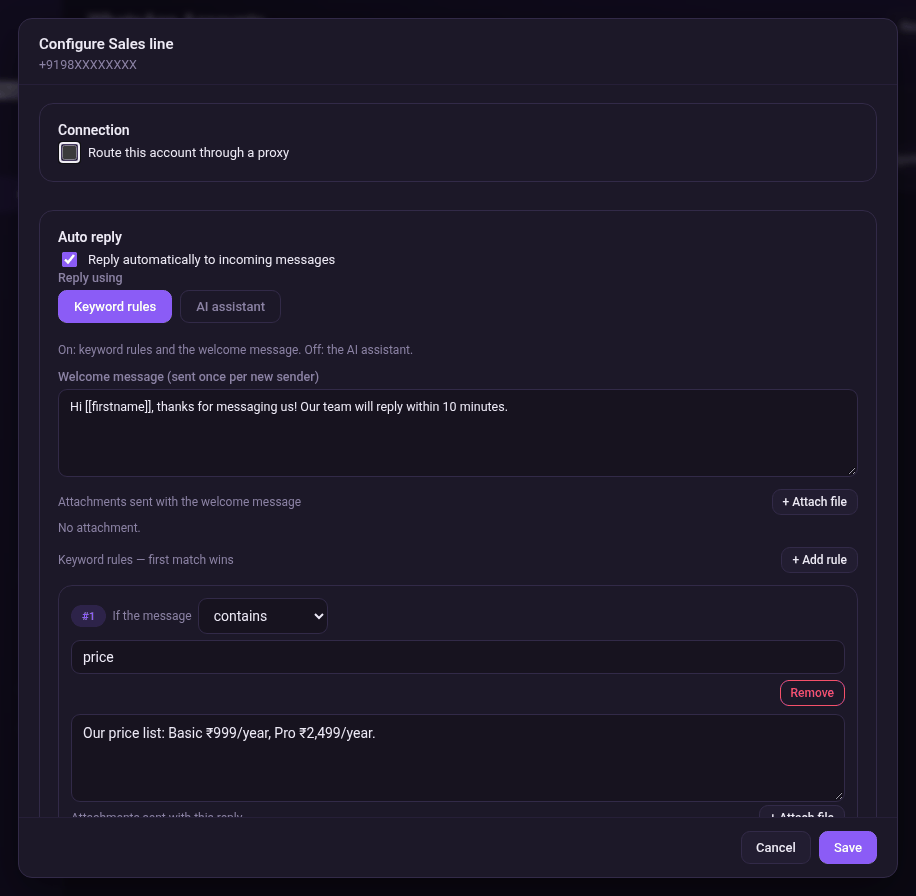
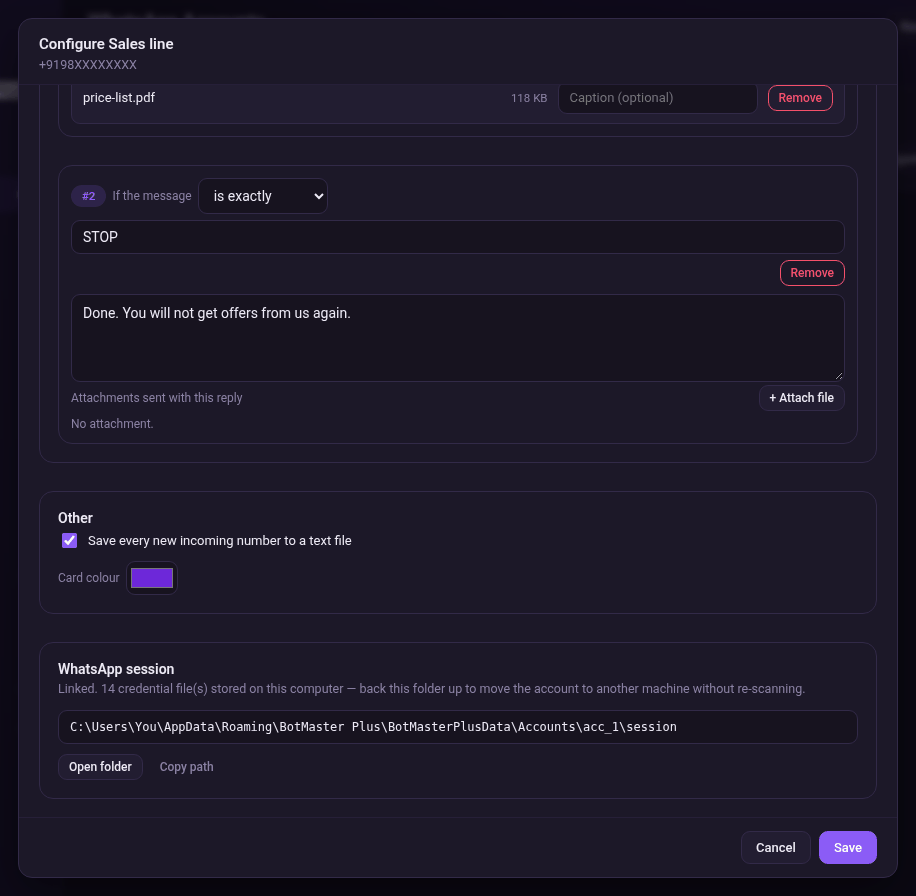
- Click Save.
Other options
- Save every new incoming number to a text file: keeps a list of everyone who messages this account.
- Card colour: pick a colour so you can spot the account quickly.