
⚙️ Settings
Licence and licence server
See your licence, change your key and check the licence server.
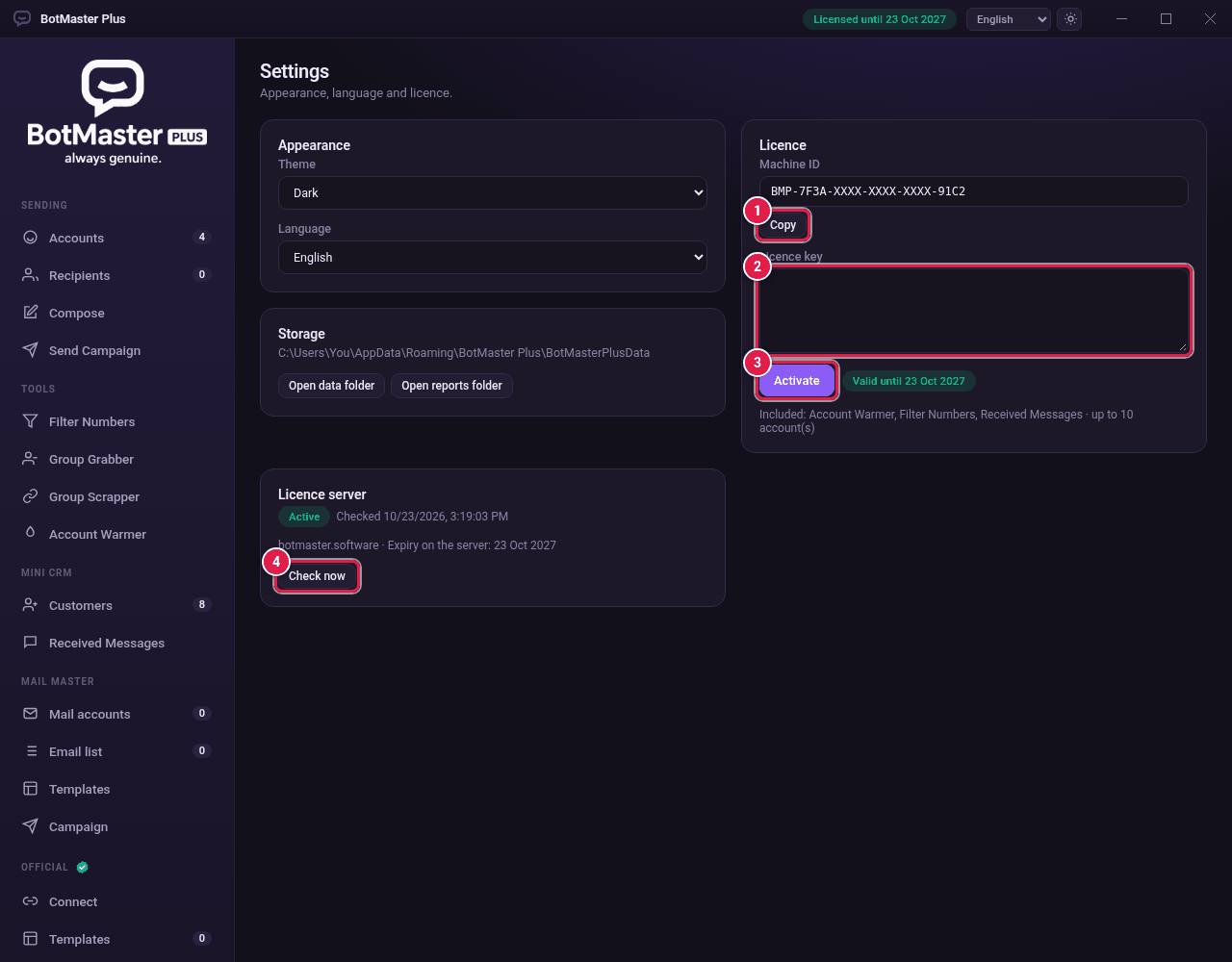
See your licence
- Click Settings in the left menu.
- Under Licence, the label next to Activate shows Valid until and the date, or Not activated.
- The line below lists what your plan includes, such as Account Warmer, Filter Numbers, Received Messages and how many accounts.
Enter a new key
Use this to renew, upgrade, or move to a new key.
- Click Copy under Machine ID.
- Log in at botmaster.software and open the License page, or buy a new plan. Paste your Machine ID if asked.
- Copy your licence key.
- Back in BotMaster Plus, paste it in Licence key.
- Click Activate.
Licence server
- Under Licence server, check the status and when it was last checked.
- Click Check now to check again straight away.
| Status | What it means |
|---|---|
| Active | All is well. |
| Not checked yet | The app hasn't asked the server yet. Click Check now. |
| Could not reach the server | Check your internet connection, then click Check now. |
| Expired | Your plan has ended. Renew it on botmaster.software. |
| Suspended or Revoked | The licence was stopped. Contact BotMaster. |
| Not recorded on the server | The server doesn't know this key. Contact BotMaster. |