✉️ Mail Master
Add a mail account and send a test
Mail Master sends email campaigns from your own mail accounts, such as Gmail or Outlook. First add the account you will send from.
Add a mail account
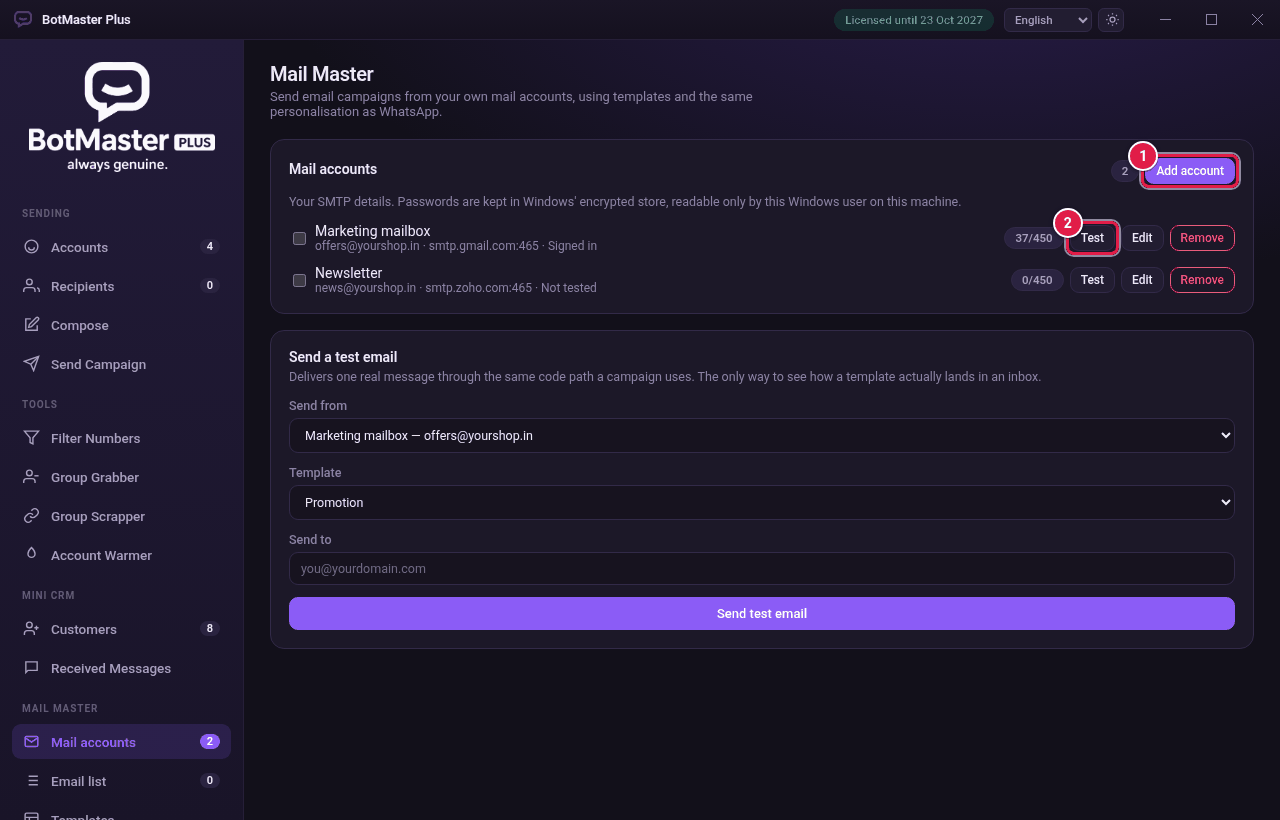
- Click Mail accounts under Mail Master in the left menu.
- Click Add account.
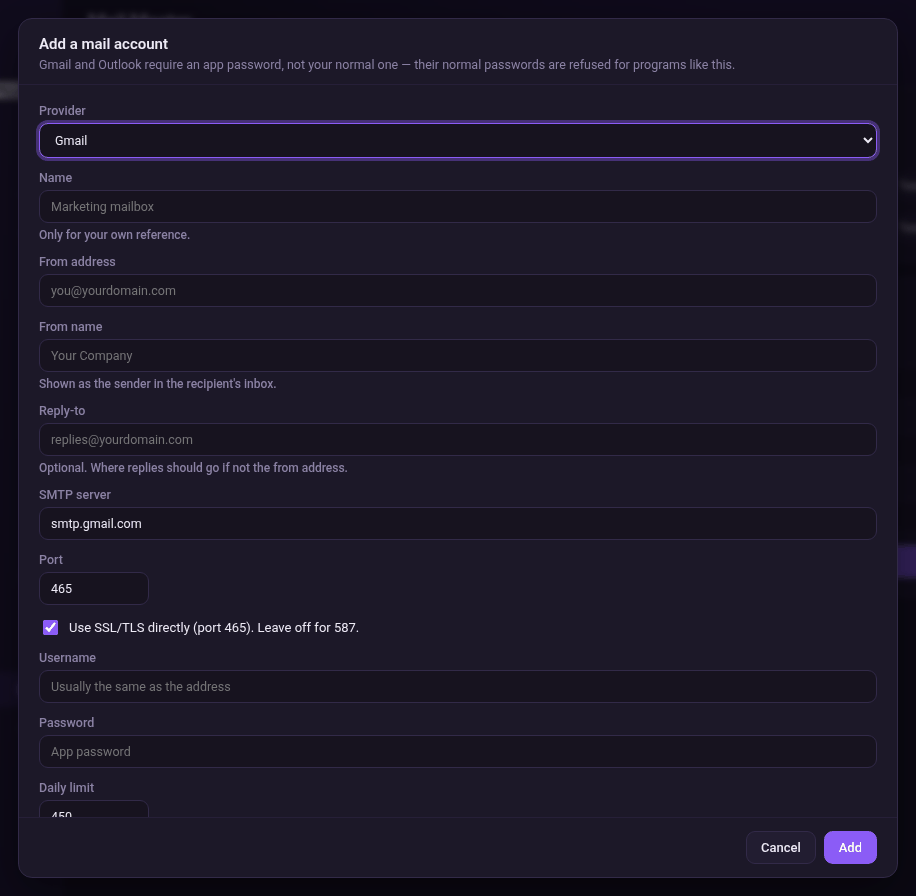
- Choose your Provider: Gmail, Outlook, Yahoo, Zoho or Other (enter manually). The server details fill in by themselves.
- Type a Name for your own reference, for example Marketing mailbox.
- Type the From address, the email people will see.
- Type the From name, for example your company name.
- Type a Reply-to address if replies should go somewhere else.
- For Other, type the SMTP server and Port. Tick Use SSL/TLS directly (port 465). Leave off for 587. if your provider says so.
- Type the Username (usually the same as the address) and the Password (the app password).
- Check the Daily limit.
- Click Add.
Test the account
- Click Test on the account's row. The status changes from Not tested to Signed in or Sign-in failed.
- Click Edit to change the details, or Remove to delete the account.
Send a test email
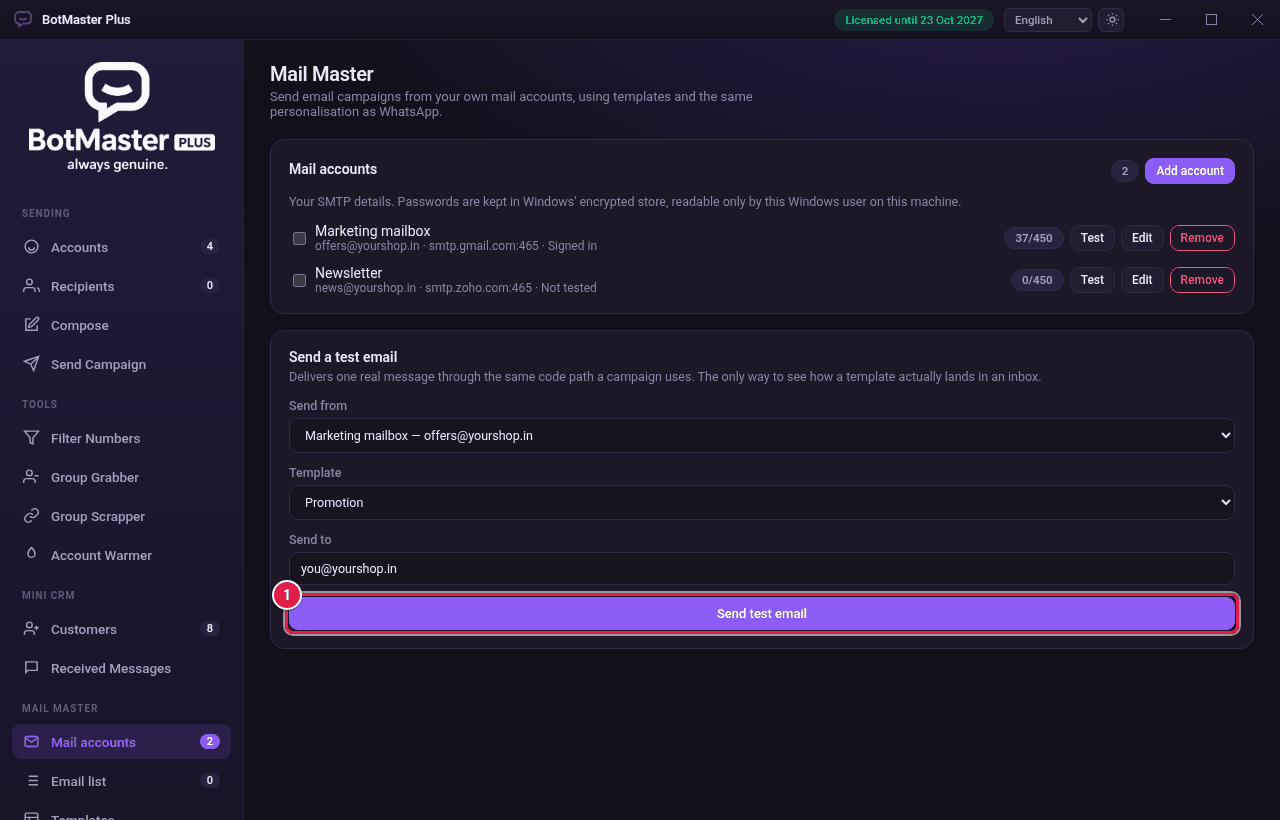
- Under Send a test email, choose the account in Send from.
- Choose a Template.
- Type your own address in Send to.
- Click Send test email.
- Check your inbox, and the spam folder if it is not there.