📣 Messages & campaigns
Placeholders, spintax and emoji
Placeholders put each person's own details in the message. Spintax picks a different word for each person. Together they make every message look personal.
Add a placeholder
- In Compose, click where you want the detail to go.
- Click Placeholder.
- Click the one you want.
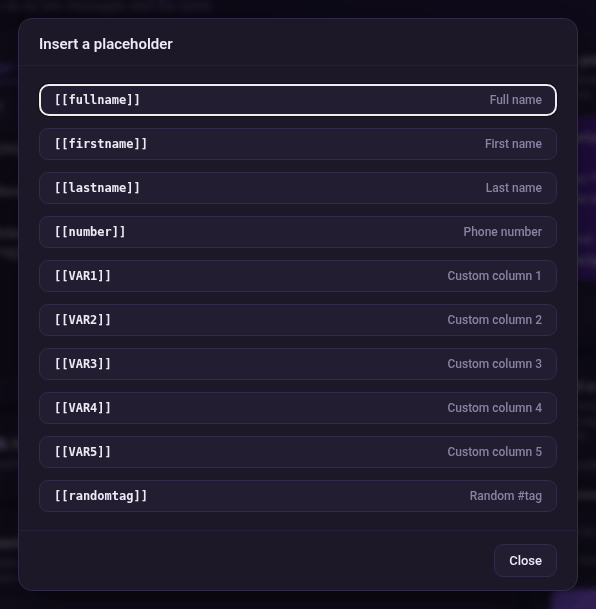
| Placeholder | What it becomes |
|---|---|
| [[fullname]] | Full name |
| [[firstname]] | First name |
| [[lastname]] | Last name |
| [[number]] | Phone number |
| [[VAR1]]…[[VAR5]] | Your extra columns 1 to 5 |
| [[randomtag]] | A random #tag |
Add spintax
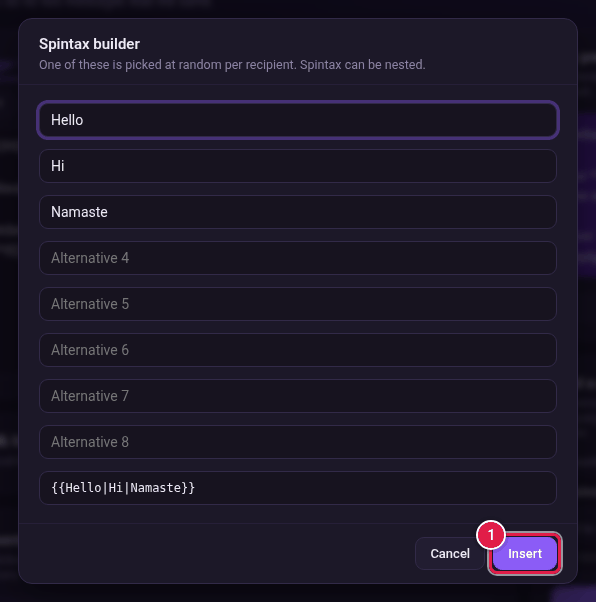
Spintax gives each person one word from a set, picked at random. For example, some people get "Hello", some "Hi" and some "Namaste".
- Click where the word should go.
- Click Spintax.
- Type each choice in its own box (Alternative 1, Alternative 2…). You need at least two.
- Check the result in the bottom box, for example {{Hello|Hi|Namaste}}.
- Click Insert.
Add an emoji
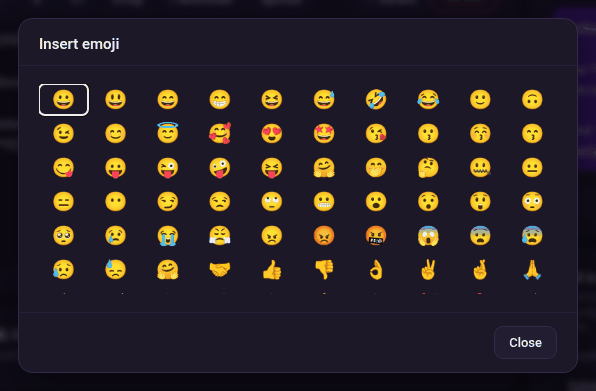
- Click Emoji.
- Click the emoji you want. Click Close when you are done.