
✅ Official WhatsApp
Connect your Meta business account
Official WhatsApp sends approved template messages through Meta's WhatsApp Business Platform, using your own business number. Start by connecting your Meta account.
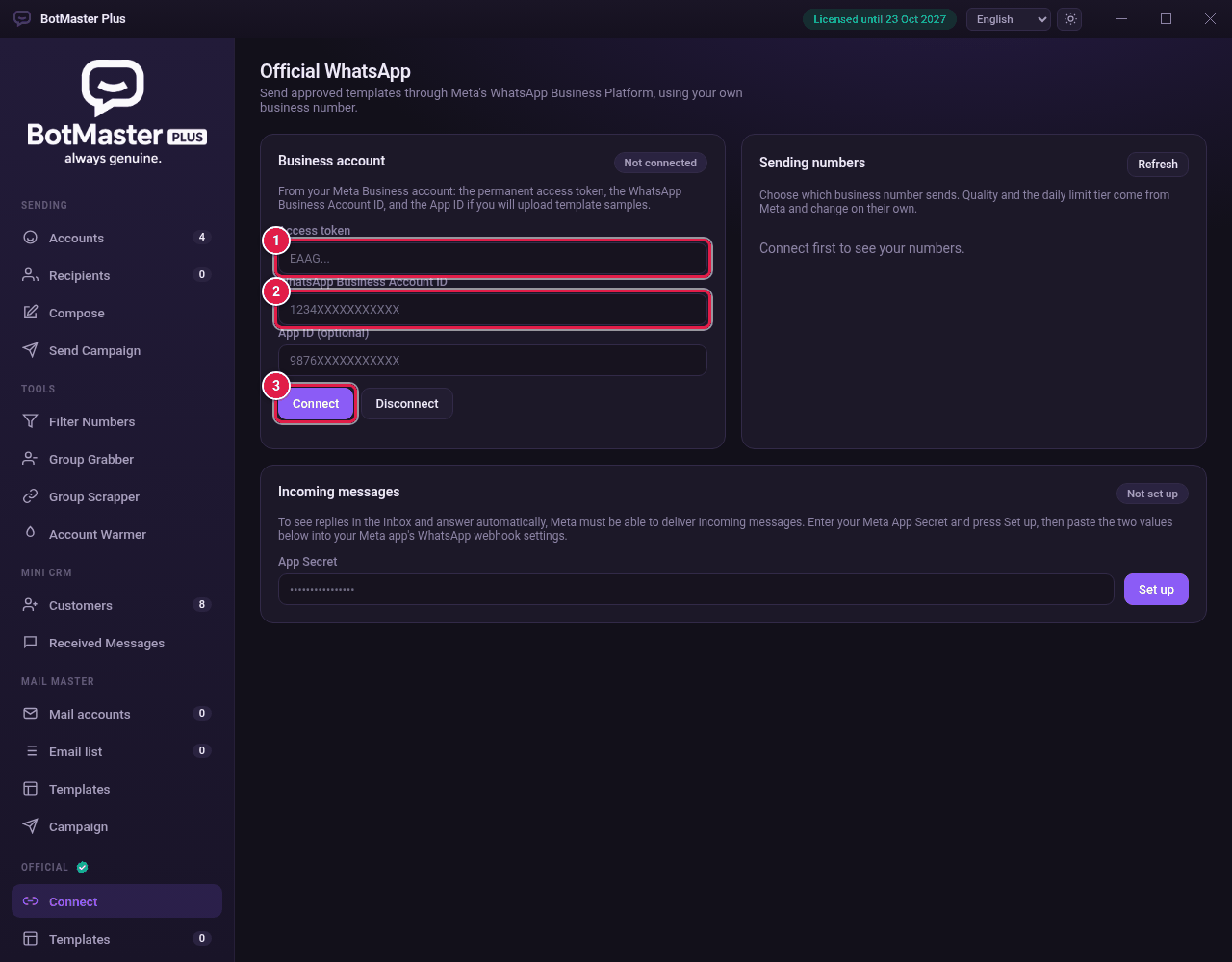
Connect
- Click Connect under Official in the left menu.
- Paste your Access token.
- Paste your WhatsApp Business Account ID.
- Paste your App ID (optional) if you will upload sample pictures or files for templates.
- Click Connect. A message tells you how many numbers were found.
Choose the sending number
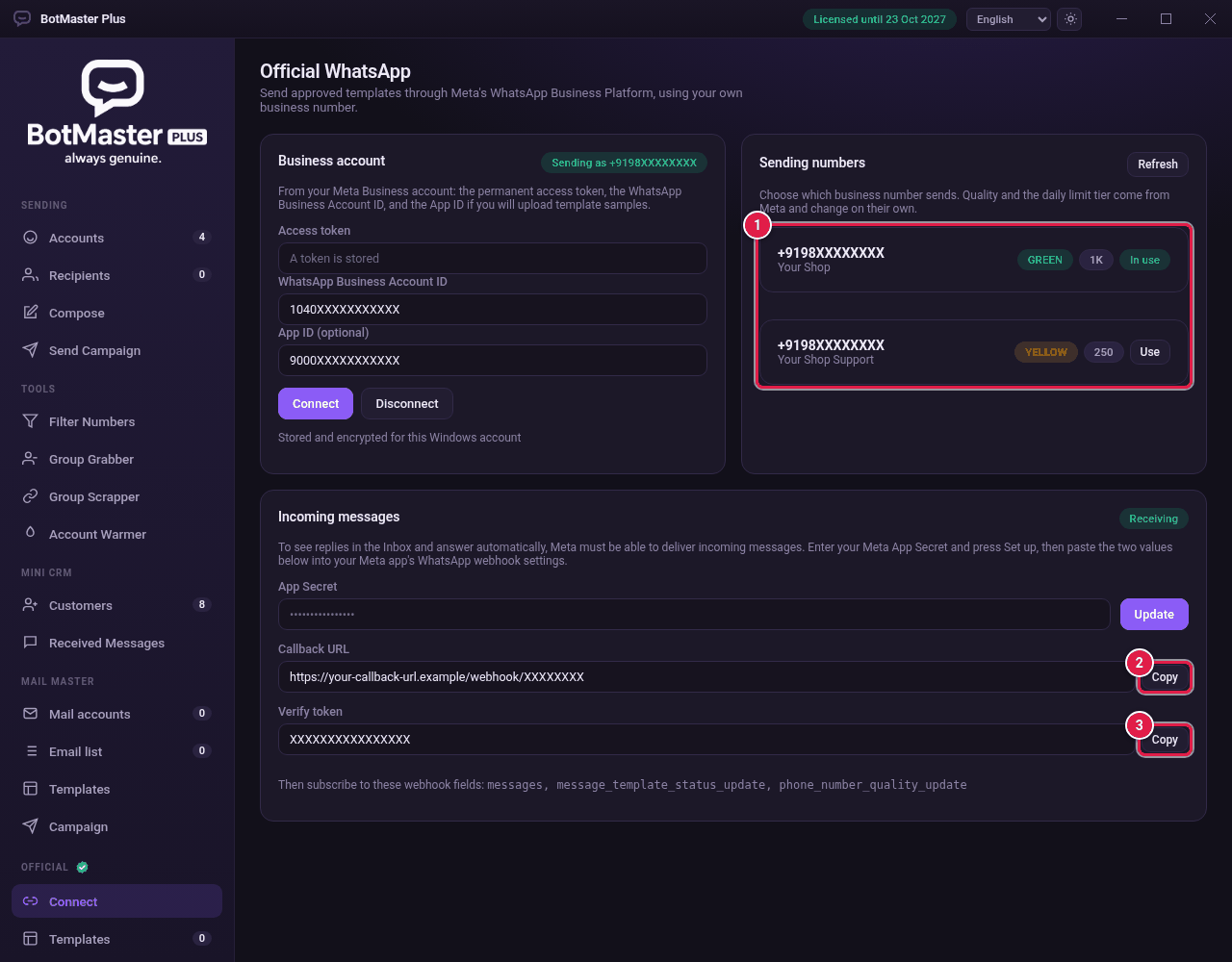
- Under Sending numbers, find the number you want.
- Click Use next to it. It now shows In use.
Receive incoming messages
To see replies in the Inbox and use Auto-reply, Meta must be able to send incoming messages to you.
- In your Meta app, open App settings → Basic and copy the App Secret.
- In Incoming messages, paste it in App Secret.
- Click Set up. The status changes from Not set up to Receiving.
- Click Copy next to Callback URL and paste it into your Meta app's webhook settings.
- Click Copy next to Verify token and paste it there too.
- In Meta, subscribe to the webhook fields shown on the screen: messages, message_template_status_update and phone_number_quality_update.