
🚀 Getting started
Find your way around
This guide shows the parts of the main window, so you know where everything is.
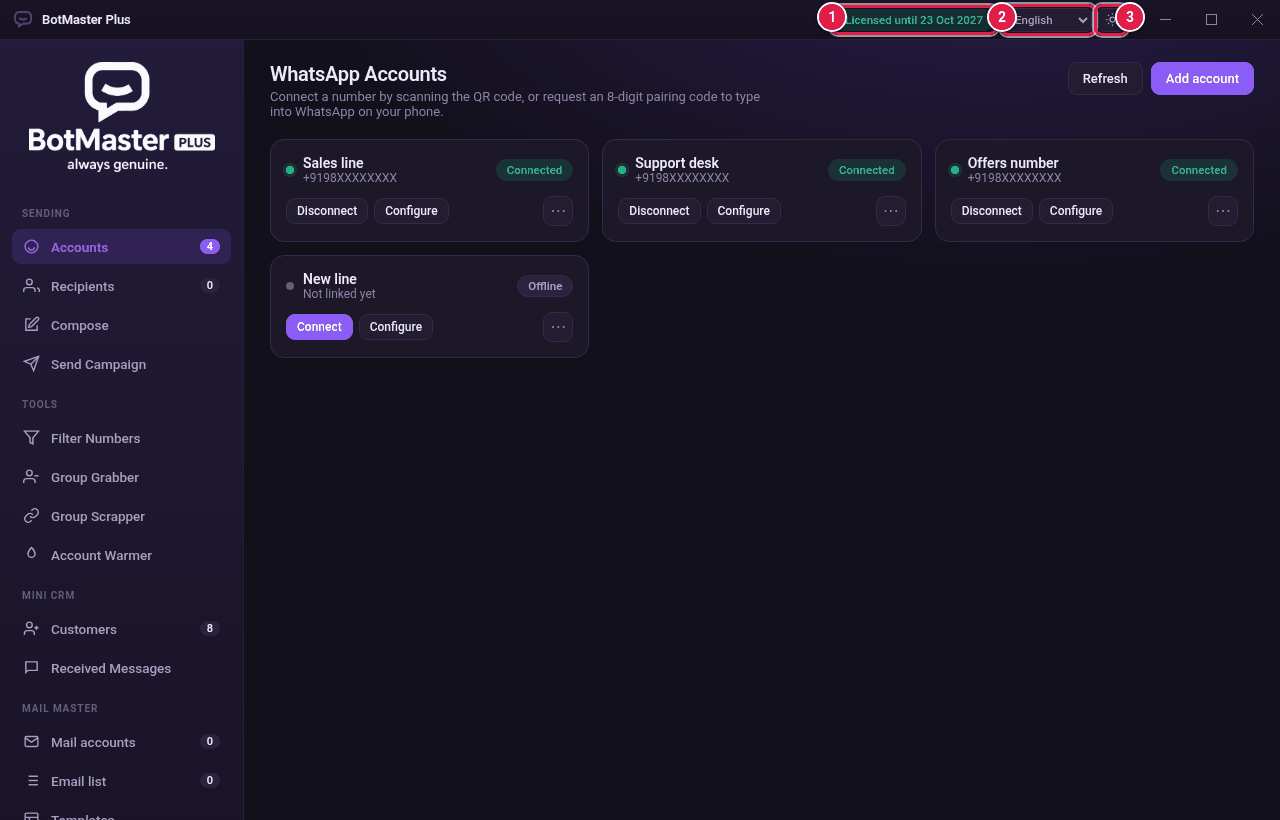
The top bar
- Licence badge: shows Licensed until and the date. It turns into Not activated or Licence stopped if something is wrong.
- Language menu: switch the app's language straight away.
- Theme button: switch between dark and light.
The menu on the left
| Group | Items |
|---|---|
| Sending | Accounts, Recipients, Compose, Send Campaign |
| Tools | Filter Numbers, Group Grabber, Group Scrapper, Account Warmer |
| Mini CRM | Customers, Received Messages |
| Mail Master | Mail accounts, Email list, Templates, Campaign |
| Official | Connect, Templates, Contacts, Campaign, Analytics, Inbox, Auto-reply |
| Bottom | Settings, About & Help |
The small numbers next to some items are counts. For example, Accounts shows how many accounts you have and Recipients shows how many people are loaded.
The usual order
- Accounts: link your WhatsApp numbers.
- Recipients: add the people to message.
- Compose: write the message.
- Send Campaign: choose accounts, set the speed and start.