
📣 Messages & campaigns
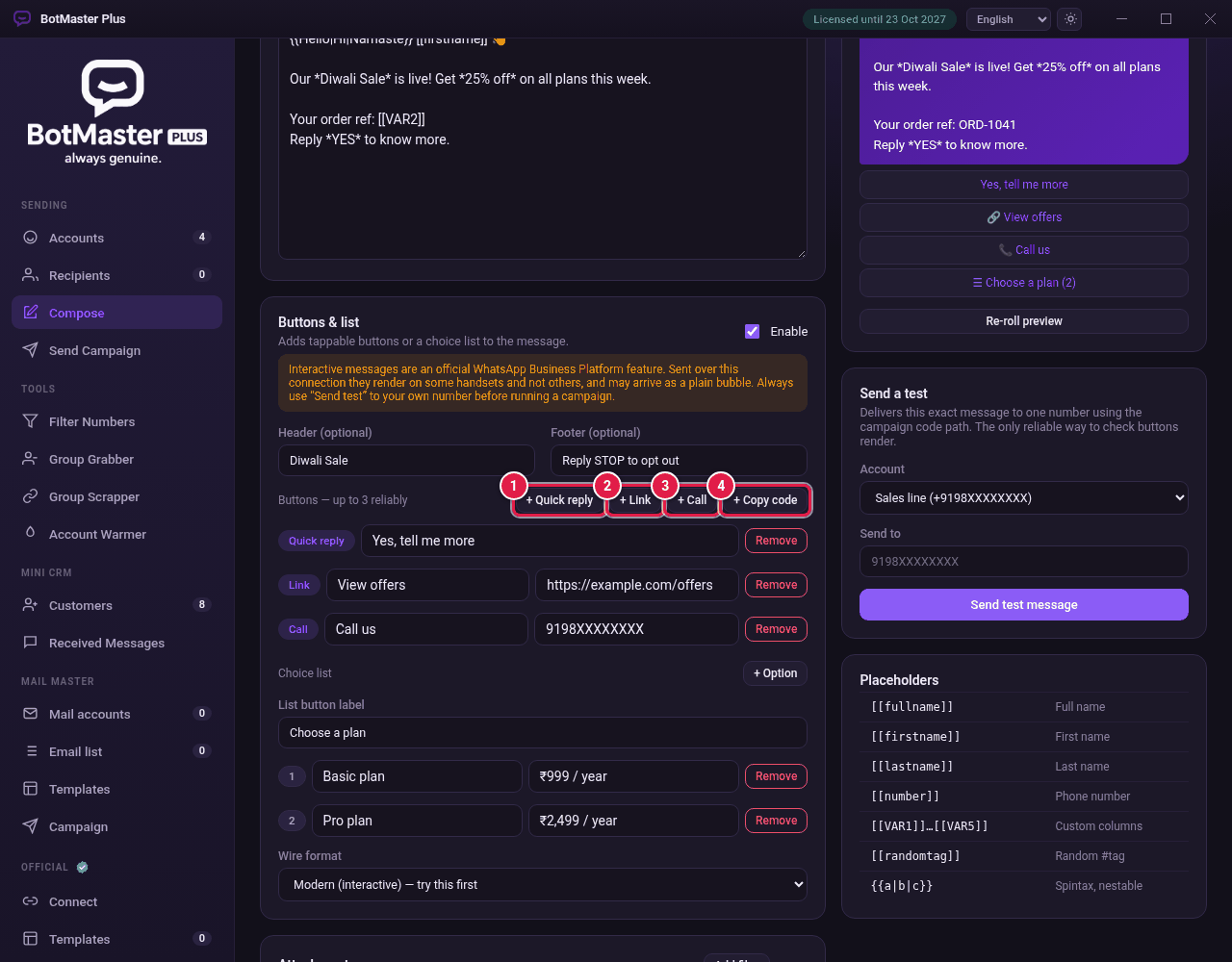
Add buttons or a choice list
Add buttons people can tap, such as "Yes, tell me more" or "Call us", or a list of choices.
Turn on buttons
- In Compose, find Buttons & list.
- Tick Enable.
- Type a Header (optional) and a Footer (optional) if you want them.
Add buttons
- Under Buttons — up to 3 reliably, click the button type you want (see the table below).
- Type the text people will see on the button.
- For Link, Call or Copy code, type the web address, phone number or code next to it.
- Repeat for up to 3 buttons. To delete one, click Remove next to it.
| Button | What it does when tapped |
|---|---|
| + Quick reply | Sends the button text back to you as a reply. |
| + Link | Opens a website. |
| + Call | Calls a phone number. |
| + Copy code | Copies a code, such as a discount code. |
Add a choice list
- Under Choice list, click + Option for each choice.
- Type the Option title, and a Description (optional) if you want.
- Type the List button label, for example Choose a plan.
Choose the wire format
- In Wire format, start with Modern (interactive) — try this first.
- If the test does not show buttons on your phone, choose Classic (buttons/list) — fallback for older handsets.