📣 Messages & campaigns
Send a campaign
Choose which accounts send, set how fast, and start. You can pause or stop at any time.
Choose the accounts
- Click Send Campaign in the left menu.
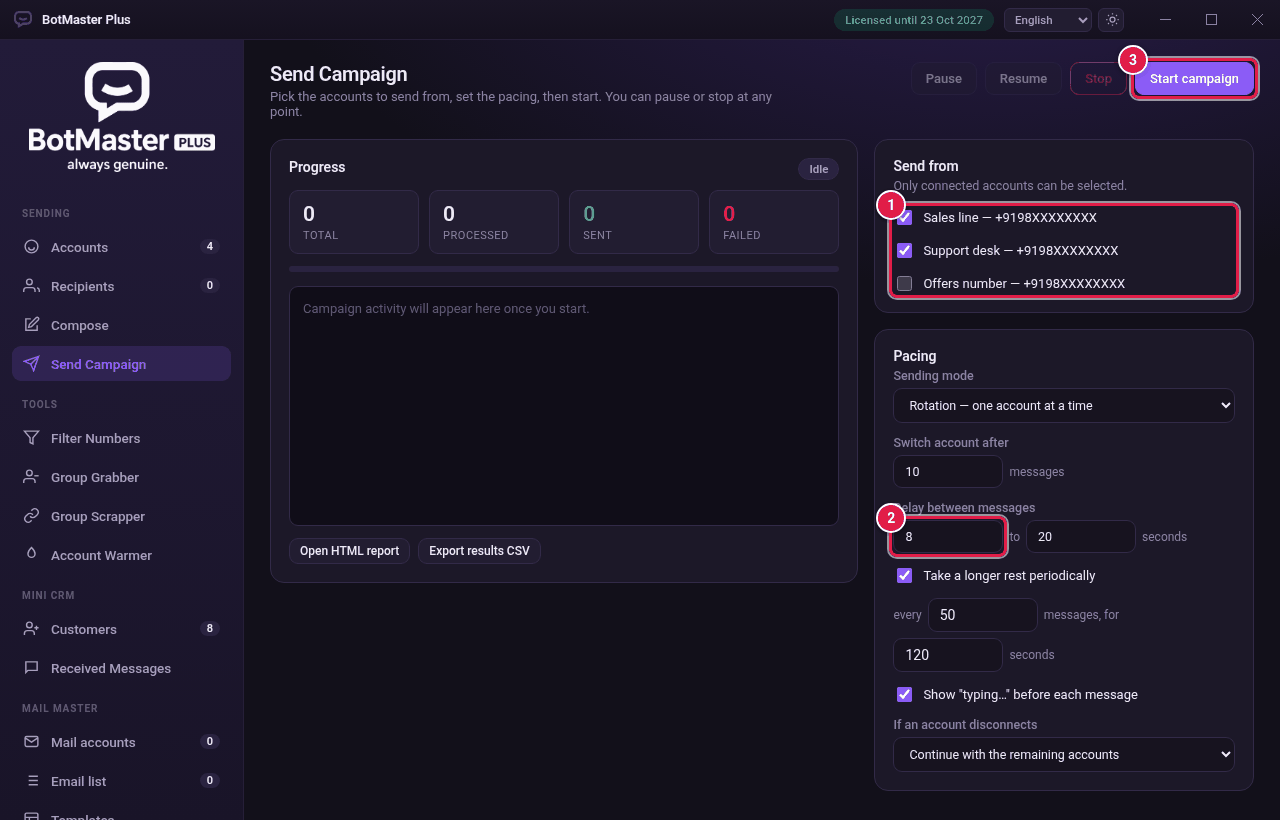
- Under Send from, tick each account you want to use. Only connected accounts can be ticked.
Set the speed
- In Sending mode, choose Rotation — one account at a time or Simultaneous — alternate every message (see the table below).
- In Switch account after, set how many messages each account sends before switching (Rotation only).
- In Delay between messages, set the shortest and longest wait in seconds, for example 8 to 20. A random wait in between is used each time.
- Tick Take a longer rest periodically. Set every how many messages, and for how many seconds.
- Tick Show "typing…" before each message so it looks like a person typing.
- In If an account disconnects, choose Continue with the remaining accounts or Stop the campaign.
| Sending mode | How it works |
|---|---|
| Rotation — one account at a time | One account sends a batch, then the next one takes over. |
| Simultaneous — alternate every message | The accounts take turns, one message each. |
Start
- Click Start campaign.
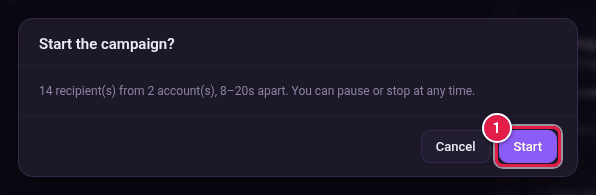
- Check the summary, then click Start.