
🔗 WhatsApp accounts
Manage your accounts
Disconnect, rename, sign out or delete an account from its card on the Accounts page.
What the status means
| Status | What it means |
|---|---|
| Connected | Linked and ready to send. |
| Connecting… / Reconnecting… | The app is reaching WhatsApp. Wait a moment. |
| Waiting for scan | The QR code is shown and not scanned yet. |
| Not linked yet | The account was added but never linked. |
| Offline | Linked before, but not connected now. Click Connect. |
| Signed out | WhatsApp removed the link. Click Connect and link again. |
| Error | Something went wrong. Click Connect to try again. |
Disconnect or reconnect
- Click Disconnect on the card to pause the account. It stays linked.
- Click Connect to start it again. No new scan is needed.
- Click Refresh at the top of the page to update every card.
Rename, sign out or delete
- Click the ⋯ (More actions) button on the card.
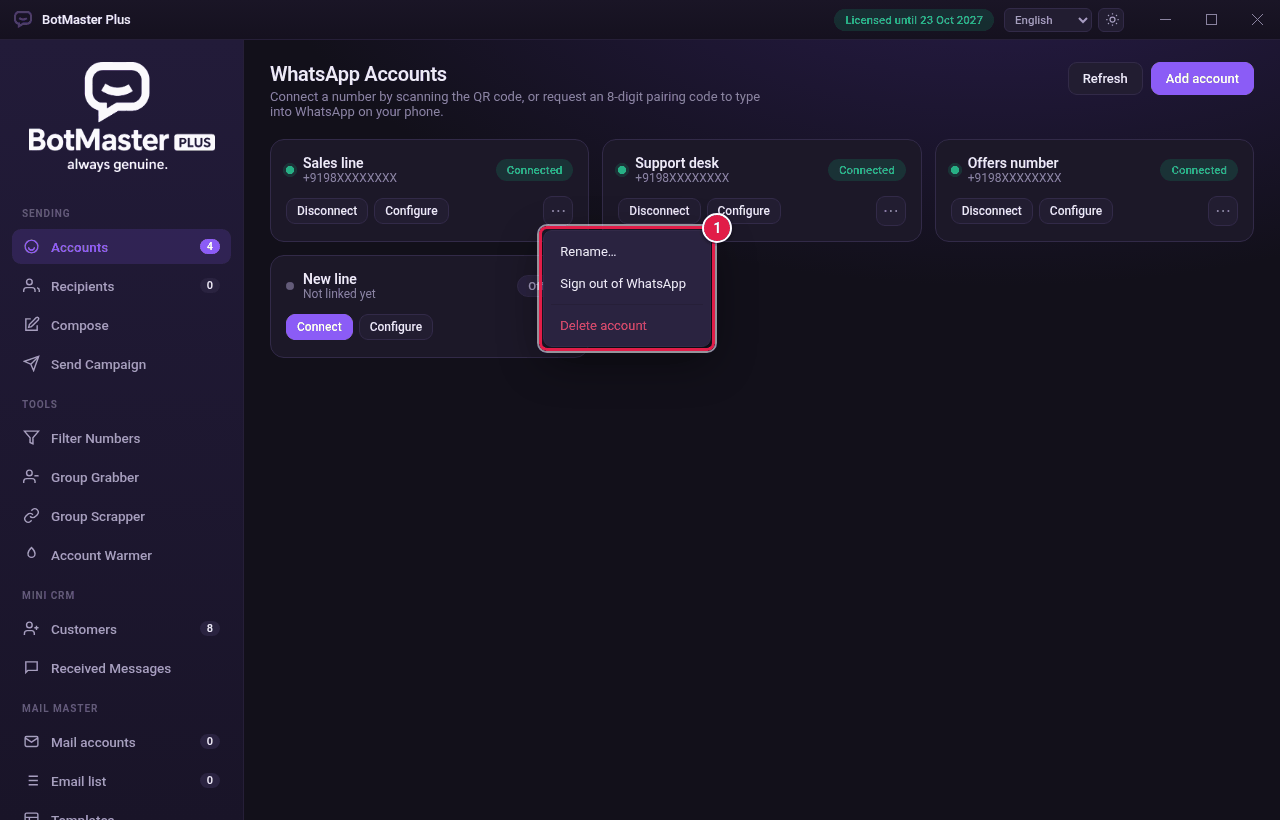
- Click the action you want.
| Action | What it does |
|---|---|
| Rename… | Changes the name you see in the app. |
| Sign out of WhatsApp | Unlinks the number. You must scan a new QR code to use it again. |
| Delete account | Removes the account from BotMaster Plus. |